
Which method to try first
- Apps are slow or the interface lags: start with a Settings-menu system restart.
- One specific app crashes but the rest work fine: delete and reinstall that app instead of restarting the whole system.
- Several apps lose connection or won’t sign in: reset the network connection.
- The remote won’t respond at all: unplug the power cord for 10 seconds, or use the Roku mobile app as a remote.
- The TV is frozen on the logo or stuck in a boot loop: move straight to a factory reset, and to Recovery Mode if that fails.
The remote shortcut, and why Roku doesn’t document it
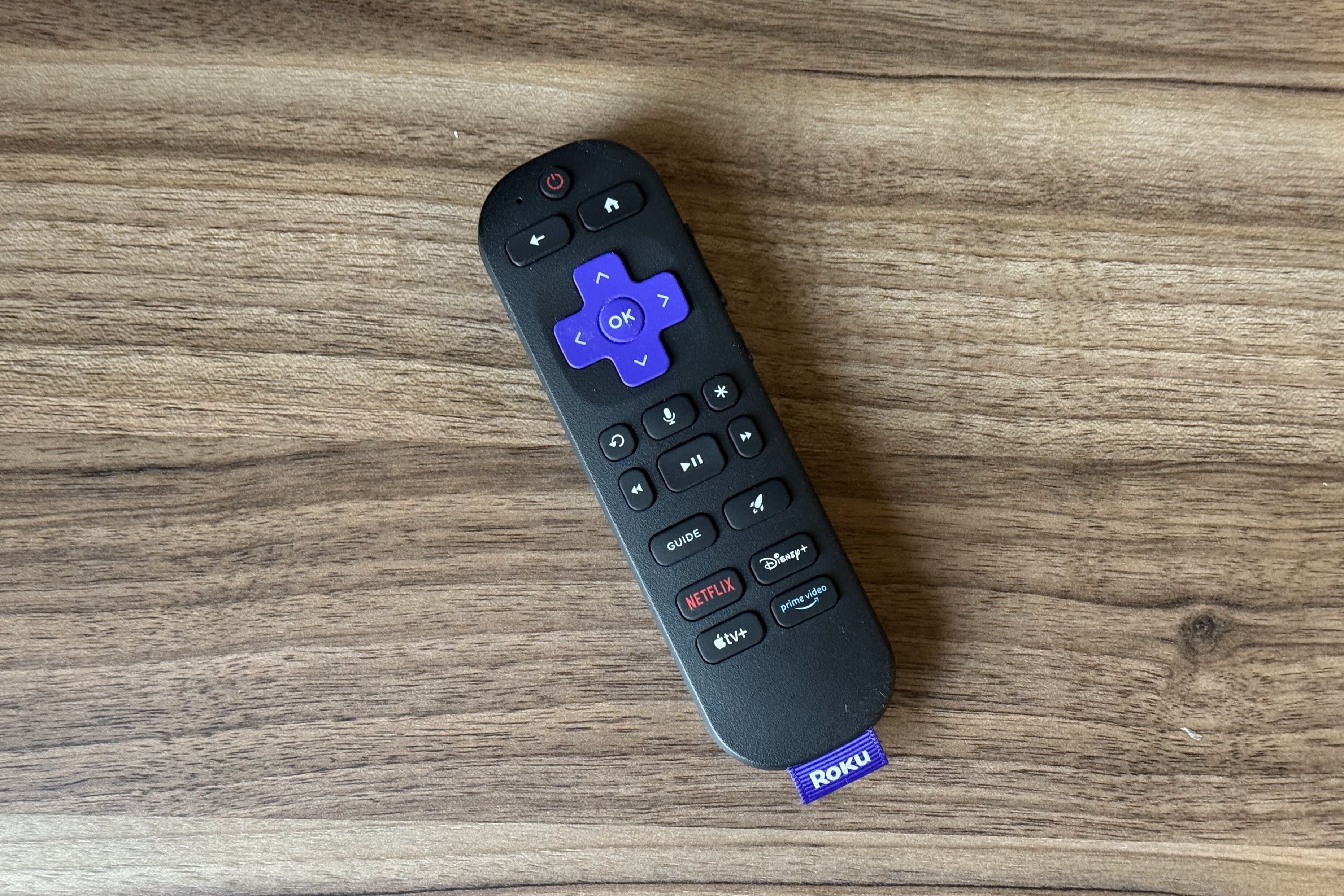
A sequence of Home pressed five times, then Up once, then Rewind twice, then Fast Forward twice, shows up across a wide range of tech sites, including Tom’s Guide, as a hidden cache-clearing code. It isn’t in Roku’s own support library. The company’s official system-restart article describes exactly two reset paths, a Settings-menu system restart and unplugging the power cord, and neither is presented as a five-tap secret code.
Whatever the combo does on a given unit, it isn’t a documented Roku feature. Treat it as a shortcut some users report as reliable, not as the manufacturer’s stated method.
Why doesn’t Roku have a one-tap “clear cache” button like a phone? Its own documentation recognizes only three reset tiers: a system restart, a network reset, and a factory reset. A full restart is the action that clears temporary cache; there’s no separate cache-only menu item.
Restarting from the Settings menu
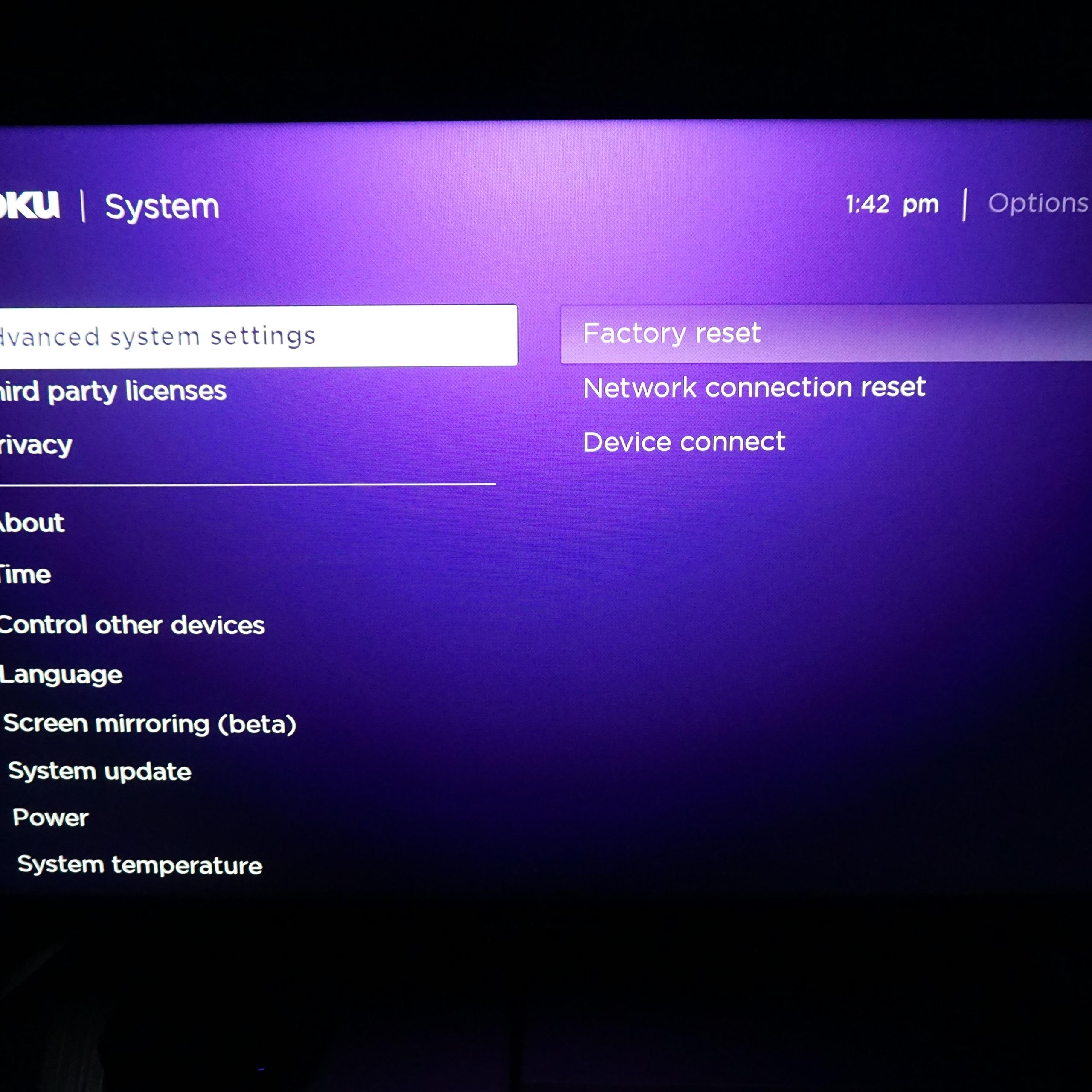
Press Home, select Settings, then System, then Power (skip this step if there’s no Power submenu), then System restart. Roku describes this as the least invasive reset method, and it doesn’t touch installed channels or saved logins.
What if my remote won’t respond at all? Unplug the TV’s power cord for at least 10 seconds before plugging it back in. Roku documents this as functionally equivalent to the Settings-menu restart.
Clearing the cache for one misbehaving app
If only a single channel freezes or crashes, delete and reinstall that one app rather than restarting the whole system. Highlight the app on the home screen, press the asterisk (*) button, and choose Remove channel. Reinstalling from the Channel Store clears that app’s local cache while leaving every other app and the system-level cache untouched. Sign back into that one app afterward.
Resetting the network connection
Go to Settings, then Advanced system settings, then Network connection reset, then Reset connection. This clears saved Wi-Fi credentials and connection data, which helps when several apps are dropping connections or failing to authenticate. Installed channels stay untouched.
Factory reset: the last resort
A factory reset wipes the device back to out-of-box condition: every channel, every saved login, and the network connection all disappear, and the TV needs to go through Guided Setup again. It’s reached from Settings, System, Advanced system settings, Factory reset, Factory reset everything.
| Method | What it clears | What it preserves | What it erases | When to use it |
|---|---|---|---|---|
| Settings-menu system restart | Temporary/system cache | Apps, logins, Wi-Fi, all settings | Nothing | First try for lag, freezing, slow apps |
| Unplug power cord (10+ sec) | Same as system restart | Same as system restart | Nothing | Remote unresponsive but menu unreachable |
| Delete and reinstall one app | That app’s local cache | System cache, other apps, other logins | That app’s login and local data | Only one app is misbehaving |
| Network connection reset | Saved Wi-Fi/network config | Installed channels, other settings | Saved Wi-Fi networks | Multiple apps losing connection |
| Factory reset (menu) | Everything | Nothing | Channels, logins, network, settings | Menu-level resets already failed |
| Factory reset (physical button) | Everything | Nothing | Same as above | Remote and menu both unreachable |
| Recovery Mode reinstall | Reinstalls the OS itself | Nothing | Everything, most invasive | TV stuck in a boot loop even after factory reset |
Two methods erase nothing at all; two erase everything. The account link is what separates them: every method above the factory-reset row leaves logins intact, and both factory-reset rows remove them.
Will I lose my Netflix or Disney+ login if I clear the cache? Not with a system restart, a network reset, an app reinstall, or an unplug-and-replug. Only a full factory reset, from the menu or the physical button, removes the account link and every saved login.
The physical reset button: Roku, TCL, and Hisense differ
| Device type | Reset button | Hold time | Status |
|---|---|---|---|
| Roku-brand Pro Series player | None; use Power + Find My Remote (side) instead | 12 seconds | Confirmed, Roku support |
| Roku-brand Plus Series player | Pinhole (older units) or Power + Find My Remote (newer units), back panel | 12 seconds | Confirmed, Roku support |
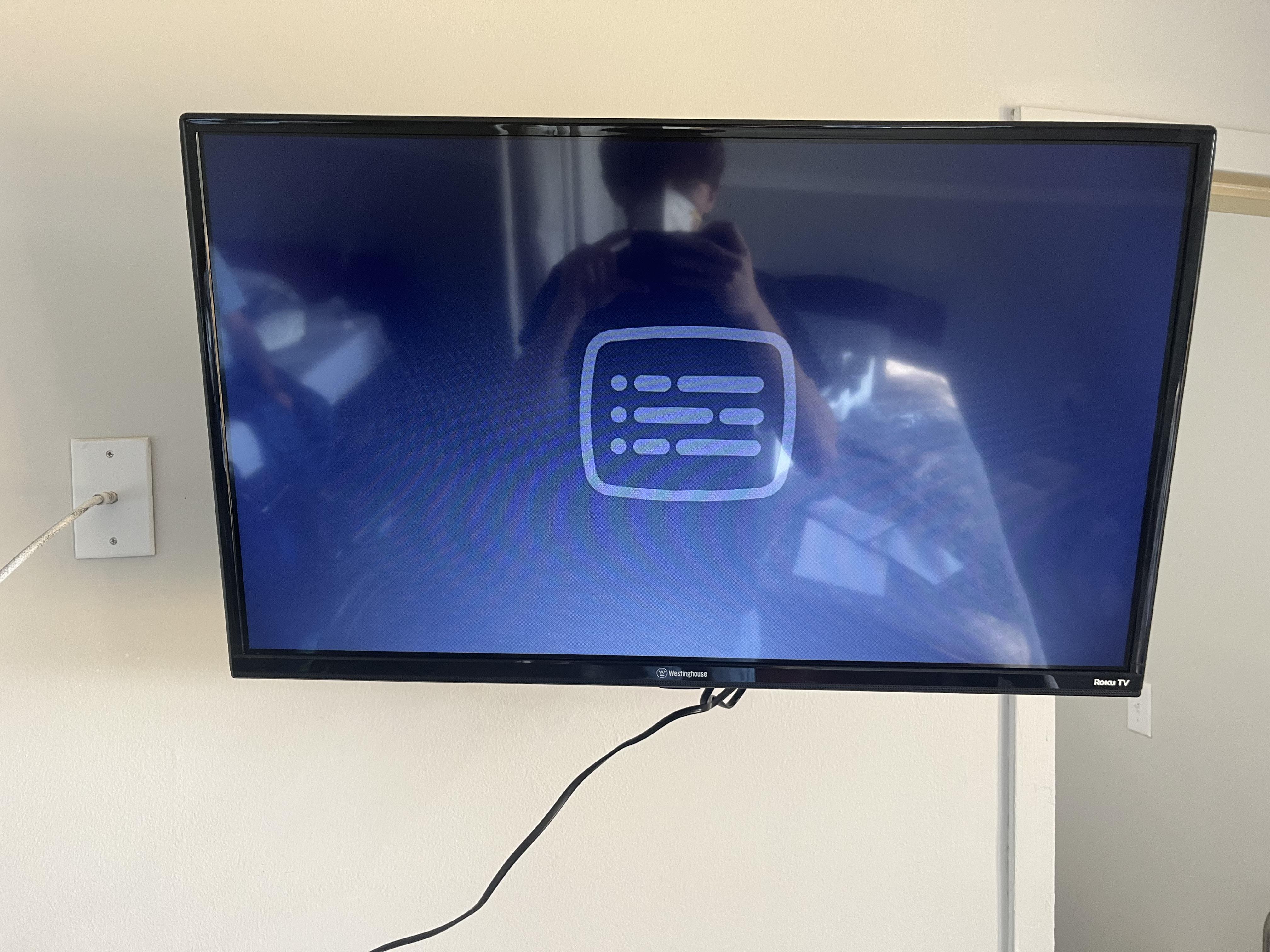
| TCL Roku TV | Pinhole near the input/HDMI panel, back or side, not the power button | 10 to 20 seconds | Confirmed, TCL support |
| Hisense Roku TV | Recessed pinhole, back panel | 15 seconds per Hisense; some independent guides report up to 20 | Confirmed location; hold time varies by source |
| Onn (Walmart) Roku TV | Not documented in any official source found | Unknown | Unconfirmed; use the Settings-menu factory reset instead |
Roku’s hardware splits by product series, not by TV brand, so the physical button on a TCL set and the one on a Roku-brand player are not interchangeable instructions even though both run Roku OS.
Why there’s no dedicated “clear cache” button

Roku folds cache-clearing into its restart tiers instead of exposing it as its own menu item. Its system-restart support article carries a last-updated timestamp of July 7, 2026. That’s a design choice Roku has kept consistent across its OS updates.
If clearing the cache doesn’t fix it
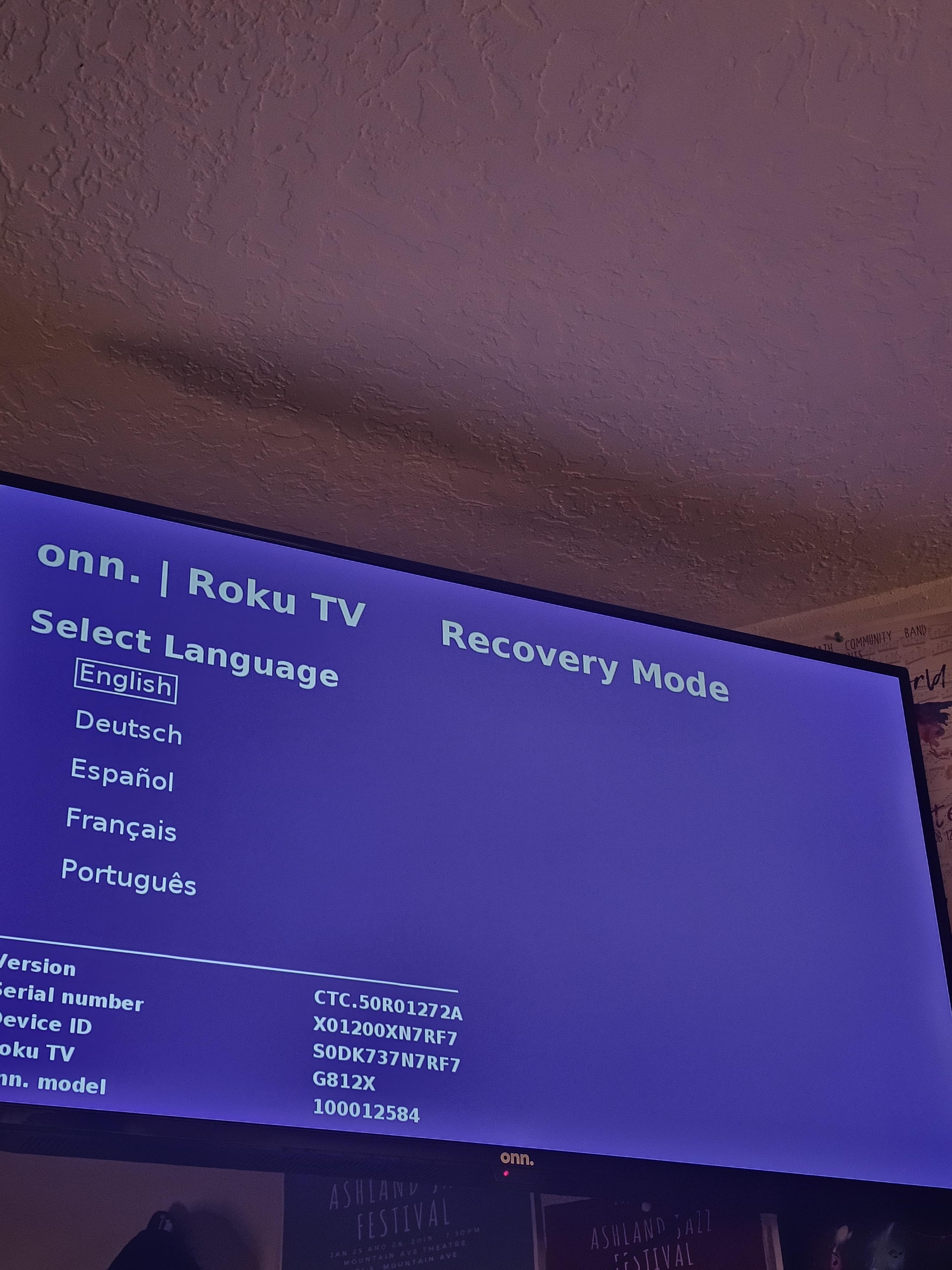
- TV frozen on the Roku logo or stuck in a boot loop: hold the physical Reset button for at least 20 seconds until a Recovery Mode screen appears; if nothing shows after about 30 seconds, the model may not support Recovery Mode.
- Wi-Fi keeps dropping after a network reset: the router, not the TV, is the more likely cause.
- One HDMI-connected source has picture or sound issues but the Roku interface itself is fine: that’s a cabling or source-device problem, not a cache problem.
How often this is worth doing
Several sites repeat a claim that Roku TVs need a cache clear every 2 to 3 months. No Roku, TCL, or Hisense support article states any recommended cadence at all.
Comments